
Transferring data between computers has become faster, safer, and far more convenient than it was in the early days of computing. From floppy disks and CDs to cloud storage, data movement has evolved significantly. Today, one of the most reliable and straightforward solutions is the USB data transfer cable.
This guide explains what a USB data transfer cable is, how it works, the different USB types available, and step-by-step instructions for transferring data—whether you’re moving everything or just a few files.
1. Introduction to Data Transfer Cables
Data transfer is all about speed, reliability, and accuracy. Early data migration methods were slow, limited in capacity, and often prone to errors. As computers became more powerful and files larger, traditional storage-based transfers were no longer efficient.
USB (Universal Serial Bus) technology emerged as the dominant solution because it provides:
Fast transfer speeds
Stable and error-resistant communication
Wide compatibility across devices and operating systems
Today, USB data transfer cables allow users to move files directly between two computers without relying on external storage or internet connections.
2. What Is a USB Data Transfer Cable?
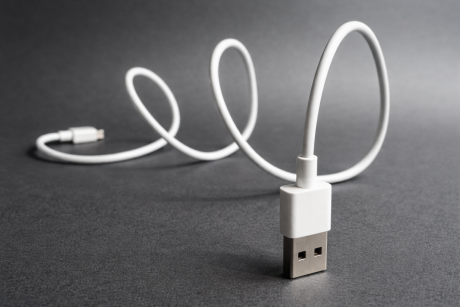
A USB data transfer cable is a specialized cable designed specifically for computer-to-computer communication. Unlike standard USB cables used for charging or connecting peripherals, a data transfer cable contains a built-in bridge chip.
Key Differences from Standard USB Cables
USB data transfer cable: Includes an internal chip that manages communication between two computers.
Standard USB cable: Designed for host-to-device connections (e.g., computer to mouse, keyboard, or flash drive).
Using a regular USB cable to connect two computers directly can confuse the systems and may even damage USB ports due to improper power flow.
3. USB Data Transfer Cable Basics
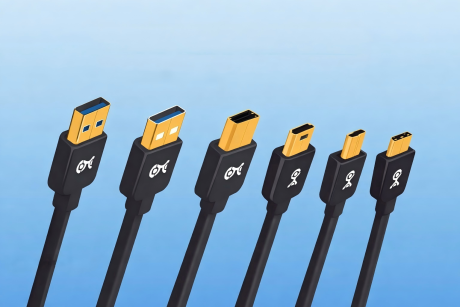
A typical USB data transfer cable has:
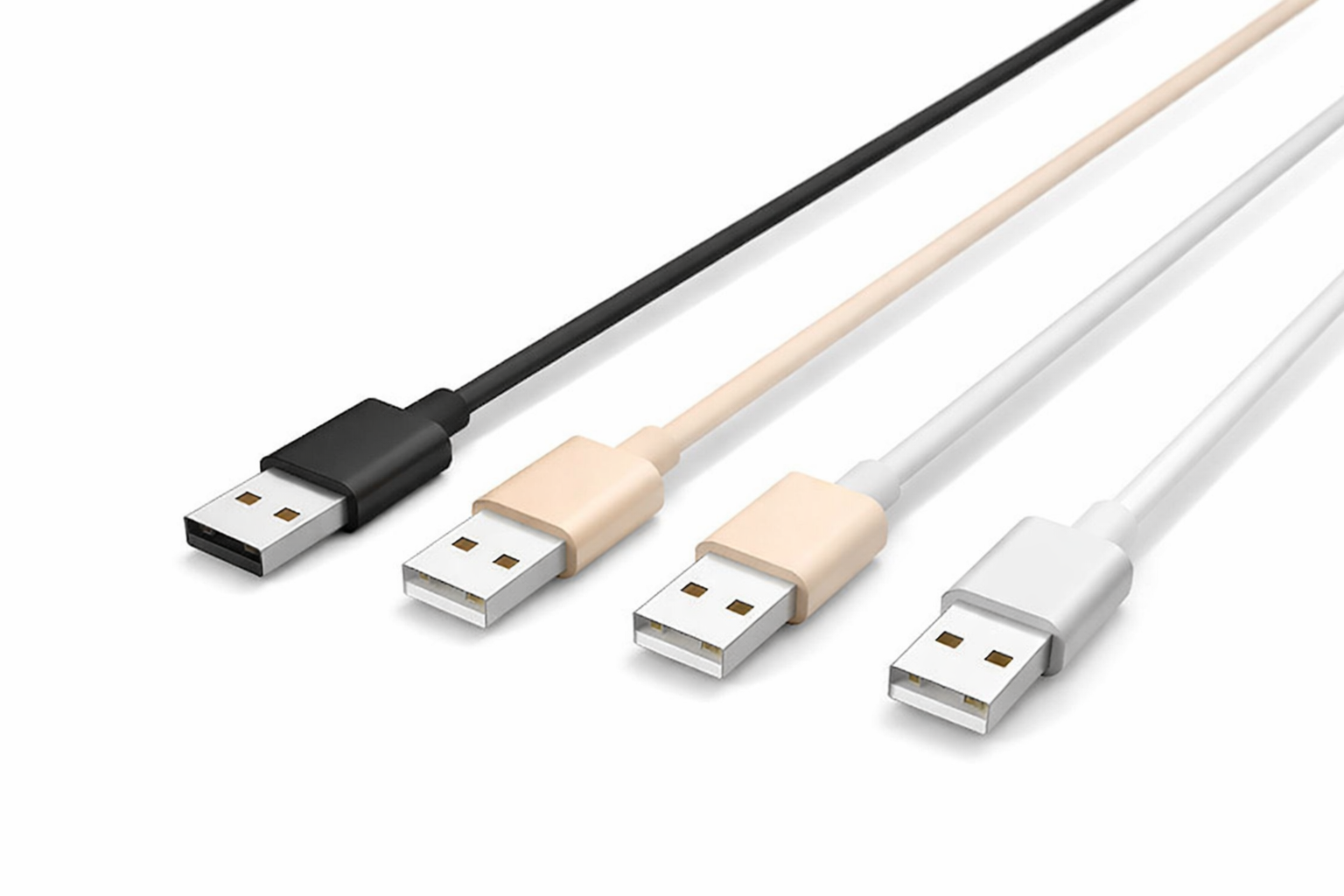
Male connectors on both ends (commonly Type A)
A small bulge or block in the middle, which houses the data bridge chip
This chip:
Identifies each connected computer
Regulates power and data flow
Prevents voltage conflicts
Without this chip, both computers may attempt to act as the “host,” causing communication errors or hardware risks.
4. Overview of USB Types and Versions
Despite the name “Universal,” USB technology has evolved through multiple versions, mainly to improve speed and efficiency.
Common USB Versions
USB 1.0: Very slow, now mostly obsolete
USB 2.0: Standard for many years, suitable for basic transfers
USB 3.0 / 3.1: Much faster, ideal for large files and system transfers
USB Port Color Coding
White or black: USB 2.0
Blue: USB 3.0 or higher
USB cables are generally backward compatible, meaning newer cables work with older ports, though at reduced speeds.
5. USB Connector Types
USB Type A
Rectangular and widely used
Found on most computers and hubs
Common on data transfer cables
USB Type B
Square-shaped
Used for printers, scanners, and powered devices
USB Type C
Smaller, reversible connector
Supports high-speed data and power delivery
Increasingly common on modern laptops and devices
Mini and Micro USB
Designed for compact devices
Often prioritize power but still support data transfer
Found on older phones and portable electronics
When choosing a cable, always confirm it supports data transfer, not just charging.
6. How to Use a USB Data Transfer Cable
The transfer process depends on whether you want to move everything or only selected files.
6.1 Full System Transfer
This method is ideal when:
Migrating to a new computer
Setting up multiple systems with identical data
Step-by-step process:
Power on both computers and ensure they are running normally.
Connect the USB data transfer cable to the first computer.
Connect the other end to the second computer.
Confirm that both systems recognize the cable and install drivers automatically.
Launch migration software such as Windows Easy Transfer or Mac Migration Assistant.
Follow on-screen instructions to select the source and destination systems.
Choose whether data should be copied or moved.
Wait for the transfer to complete and confirm success.
6.2 Partial (Piece-by-Piece) Transfer
This method is better for transferring specific files or folders.
Steps:
Connect both computers using the data transfer cable.
Open file explorer or finder on both systems.
Select the desired files or folders.
Drag and drop them to the destination computer.
Allow each transfer to finish before starting another.
Tip: Avoid transferring too many folders at once to reduce the risk of errors.
7. Troubleshooting Common Issues
Cable Not Recognized
Try a different USB port
Disconnect and reconnect the cable after a few seconds
Restart both computers if necessary
File Transfer Errors
Some files may be copy-protected
Check file permissions and access rights
Migration software may handle protected files better than manual transfers
OS Image Conflicts
Full system images (OSIs) may fail due to hardware differences
These are better suited for backups on the same machine
8. Best Practices and Tips
Use a high-quality, certified USB data transfer cable
Match cable and port versions for best speed
Transfer data in manageable batches
Verify important files after transfer
Avoid unplugging the cable during active transfers
9. Conclusion and Next Steps
USB data transfer cables offer a fast, reliable, and direct way to move data between computers. By understanding USB types, connector options, and correct usage methods, users can avoid common mistakes and ensure smooth data migration.
For more advanced needs—such as large-scale migrations or compatibility issues—manufacturer support articles and specialized software can provide additional guidance.
With the right cable and a little preparation, transferring data can be simple, safe, and stress-free. Contact us for more information.
FAQs
1. Can any USB cable be used to transfer data between two computers?
No. Only USB data transfer cables are designed for direct computer-to-computer communication. These cables contain an internal bridge controller chip that manages data flow and prevents power conflicts. Standard USB charging or peripheral cables lack this chip and may cause port damage if used incorrectly.
2. How does the bridge chip inside a USB data transfer cable work?
The bridge chip acts as a communication mediator between two host devices. It:
Identifies each computer independently
Regulates voltage and current
Converts data into a format both systems can interpret
Without this chip, both computers may attempt to supply power simultaneously, leading to unstable connections or hardware failure.
3. What transfer speeds can I realistically expect from a USB data transfer cable?
Actual transfer speeds depend on:
USB version (2.0 vs. 3.0/3.1)
Storage device speed (HDD vs. SSD)
File size and number of files
System performance
Approximate real-world speeds:
USB 2.0: 20–30 MB/s
USB 3.0: 100–400 MB/s
The slowest component in the chain determines the final speed.
4. Are USB data transfer cables operating-system dependent?
Yes, partially. Most modern cables support:
Windows-to-Windows
macOS-to-macOS
Some Windows-to-macOS transfers
However, cross-platform transfers may require:
Dedicated software
Driver installation
File system compatibility (NTFS vs. APFS)
Always verify OS support before purchasing a cable.
5. Why do some data transfer cables require proprietary software?
Advanced data transfer cables use proprietary software to:
Map user profiles and system settings
Handle permission-restricted files
Automate full system migrations
This software improves stability and error handling compared to manual drag-and-drop methods.
6. Can I transfer installed programs and applications using a USB data transfer cable?
In most cases, installed programs cannot be transferred directly because:
Applications depend on system registry entries
Licensing and activation are hardware-bound
File paths and OS architecture differ
Migration tools may copy program files, but reinstallation is usually required for proper functionality.
7. Is it safe to transfer sensitive or encrypted data?
Yes, but with precautions:
Ensure both systems are trusted
Use encryption-aware migration software
Disable sleep or power-saving modes during transfer
USB data transfer cables provide direct, offline transfers, reducing exposure compared to cloud-based methods.
8. What causes file corruption during USB data transfers?
Common causes include:
Loose or low-quality cables
Interruptions from sleep or shutdown
Faulty USB ports
Transferring large batches simultaneously
To minimize risk, transfer files in stages and avoid unplugging the cable mid-process.
9. Can USB-C data transfer cables be faster than traditional USB-A cables?
Yes. USB-C supports:
Higher data throughput
Improved power delivery
Reversible connectors
However, speed gains only occur if both computers and the cable support higher USB standards such as USB 3.1 or later.
10. How does a USB data transfer cable compare to network-based transfers?
USB Data Transfer Cable
Faster for large files
No network configuration required
Works offline
Network Transfer
Better for remote or multi-device access
Dependent on network speed and stability
For one-time or large migrations, USB data transfer cables are often more efficient.
11. Can a USB data transfer cable damage my computer?
A certified, properly designed data transfer cable will not cause damage. Problems typically arise when:
Using standard USB cables incorrectly
Connecting uncertified or low-quality cables
Ignoring compatibility requirements
Always use cables specifically labeled for data transfer between computers.
12. What should I look for when choosing a professional-grade data transfer cable?
Key factors include:
USB version (3.0 or higher recommended)
Certified chipset
OS compatibility
Included migration software
Build quality and shielding
Professional-grade cables offer better stability, speed, and long-term reliability.