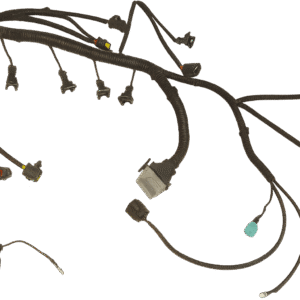

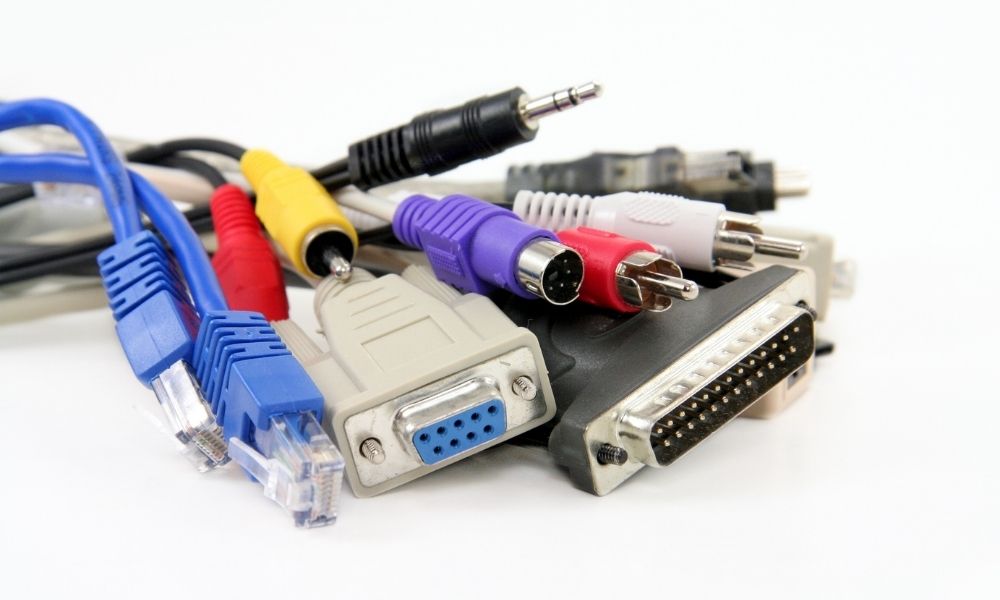
The modern computer environment, whether in an office, home, or public setting, is built upon a complex web of interconnected devices. These connections—the computer cables—are the digital nervous system that allows hardware to communicate, display information, and receive power. While they can appear confusing due to their variety, understanding the primary cable types is essential for maximizing hardware performance, ensuring compatibility, and maintaining clean, functional setups.
This guide will dissect the 10 most critical computer cable categories, explaining their technical function, common applications, and place in today’s evolving technological landscape.
CHAPTER ONE: VGA Cables
VGA Cables
What are VGA Cables?
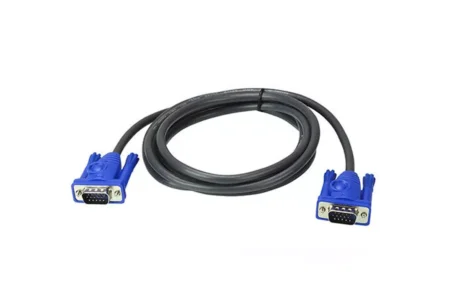
VGA is an acronym for Video Graphics Array. Also known as a D-sub cable or Analog cable, it is one of the oldest and most recognizable video interfaces. The connector is typically blue and features 15 pins arranged in three rows.
How Does it Work?
VGA is an analog interface. It transmits continuous electrical signals representing the color and brightness information for the visual display. Since modern computers use digital information and modern monitors use digital screens (LCD, LED), the digital signal from the computer must be converted to analog by the video card, then sent through the VGA cable, and finally digitized again by the monitor. This conversion process is why VGA is limited in high-resolution and high-refresh-rate applications.
Connection and Application
VGA is suitable for legacy devices, older projectors, and basic desktop monitors where high definition is not a requirement. It connects one end to the display device and the other to the corresponding blue-colored VGA port on the computer or docking station.
CHAPTER TWO: DVI Cables
DVI Cables
What are DVI Cables?
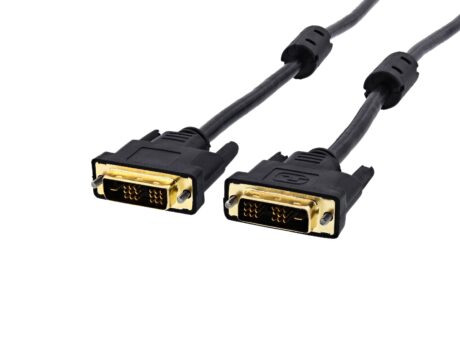
DVI stands for Digital Visual Interface. It was developed as a bridge technology to replace analog VGA, offering vastly improved quality and supporting digital data transmission.
Technical Variations and Function
DVI cables are characterized by their versatility, often containing a blend of digital and analog capabilities:
DVI-D (Digital): Transmits only digital signals.
DVI-A (Analog): Transmits only analog signals (for compatibility with VGA monitors).
DVI-I (Integrated): Transmits both digital and analog signals.
DVI also comes in Single Link (up to 1920×1200 resolution) and Dual Link (up to 2560×1600 resolution) configurations, distinguished by the number of pins present in the connector block. DVI translates digital information from the PC’s video card directly to the LCD monitor, avoiding the analog-to-digital conversion loss experienced with VGA.
Connection
Connection involves linking the cable to the monitor and the DVI port on the video card. Due to the various DVI types, matching the correct connector (DVI-D vs. DVI-I) is crucial for a secure physical fit.
CHAPTER THREE: HDMI Cables
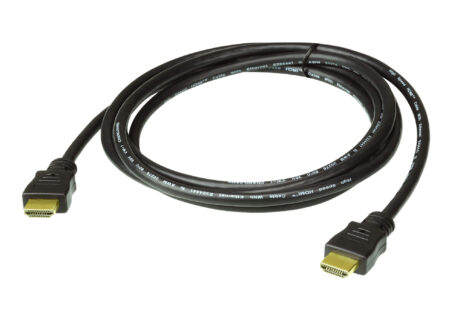
HDMI Cables
What are HDMI Cables?
HDMI stands for High Definition Multimedia Interface. It is the current standard for consumer electronics and PC displays, supporting high-speed digital transmission of both video and audio data over a single cable.
How Does it Work?
HDMI combines the pure digital video transmission capability of DVI and adds multi-channel audio support, thereby offering a complete audiovisual solution. Newer HDMI standards (such as HDMI 2.1) feature significantly increased bandwidth, enabling support for:
4K resolution at 120Hz.
8K resolution at 60Hz.
High Dynamic Range (HDR) video.
Enhanced Audio Return Channel (eARC).
Connection and Dual Function
The HDMI cable connects the computer or Blu-ray player to any display or projector. Its dual function (video and audio) makes it ideal for connecting a PC to a large-screen TV, utilizing the TV screen for visual display and the TV speakers for sound playback.
CHAPTER FOUR: PS/2 Cables
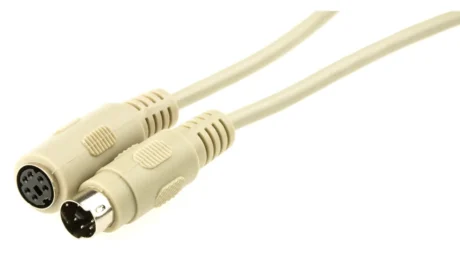
PS/2 Cables
What are PS/2 Cables?
PS/2 is an abbreviation for Personal System/2, named after the IBM computer series that introduced this standard. It is a legacy cable primarily used for connecting mice and keyboards and is identifiable by its round, six-pin Mini-DIN connector.
Technical Relevance (Legacy)
The PS/2 interface is nearly obsolete, having been replaced by USB. Its original advantage was that it utilized dedicated hardware interrupts on the motherboard. This meant PS/2 input was processed directly at the BIOS level, whereas USB uses a less priority-driven “polling” mechanism. For this reason, some high-end industrial systems or extreme gaming motherboards still retain PS/2 ports.
Connection and Color Coding
PS/2 requires a wired connection to peripheral devices like mice and keyboards. The port is strictly color-coded to prevent incorrect connection:
Purple PS/2 Port: Compatible with the keyboard.
Green PS/2 Port: Compatible with the mouse.
CHAPTER FIVE: Ethernet Cables
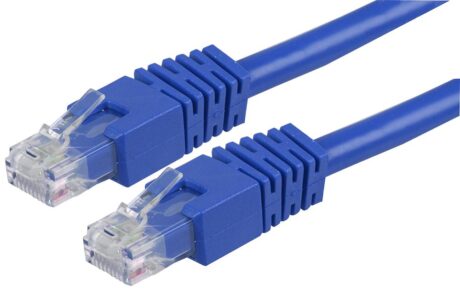
Ethernet Cables
What are Ethernet Cables?
Ethernet cables are the standard physical medium for building wired local area networks (LANs). They are composed of eight copper wires twisted into four pairs (Twisted Pair) and feature the distinct RJ-45 connector at each end.
How Does it Work? (Standards and Speed)
Ethernet cables transmit data packets between a computer and a network device (like a router, switch, or modem). The speed is determined by the cable category:
Cat5e: Supports up to 1 Gigabit per second (Gbps).
Cat6: Supports up to 1 Gbps (and 10 Gbps over shorter distances).
Cat6a: Supports up to 10 Gbps over greater distances (100 meters).
The cable plugs into an Ethernet port on the computer’s motherboard (or a network card) and the router to establish an internet or local network connection.
CHAPTER SIX: 3.5mm Audio Cables
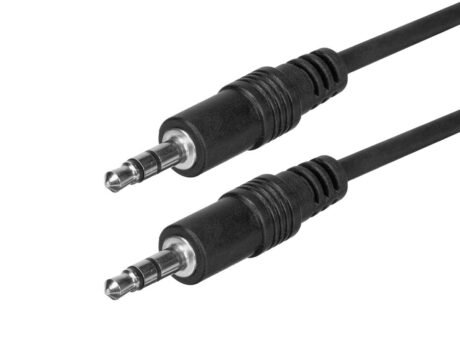
3.5mm Audio Cables
What are 3.5mm Audio Cables?
The 3.5mm audio cable, also known as a headphone jack or TRS/TRRS connector, is the ubiquitous analog standard for transmitting audio signals. The name refers to the diameter (3.5mm) of the plug.
Technical Types and Color Coding
The plug contains separate conductive sections:
TRS (Tip-Ring-Sleeve): Typically used for stereo audio (two channels).
TRRS (Tip-Ring-Ring-Sleeve): Adds a fourth conductor for a microphone channel (common on smartphone headsets).
On a standard PC, the corresponding ports are color-coded to define their function:
Green Port: Line-Out (Connects to computer speakers or headphones).
Pink Port: Microphone-In (Connects to a microphone).
Blue Port: Line-In (Connects to external audio sources like MP3 players, CD players, or electric guitars).
CHAPTER SEVEN: USB Cable
USB Cable
What is USB Cable?
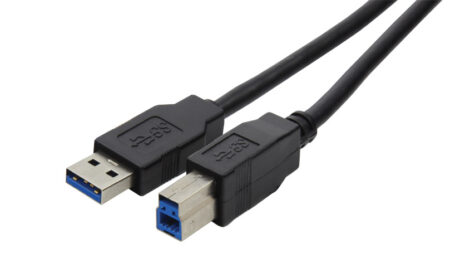
USB stands for Universal Serial Bus. It is the most prevalent standard for connecting peripherals, transferring data, and supplying low-power electricity.
Technical Evolution and Speed
USB has undergone significant speed increases and now incorporates various standards and connector types:
| Standard | Max Speed | Connector Tip Color |
| USB 2.0 (High Speed) | 480 Mbps | Black or White |
| USB 3.0/3.1 Gen 1 (SuperSpeed) | 5 Gbps | Blue |
| USB 3.1 Gen 2 (SuperSpeed 10) | 10 Gbps | Teal or Red |
USB cables are compatible with a vast array of devices, including storage drives, printers, scanners, input devices, and wireless adapters. For maximum data transfer output, both the device and the port must support the highest matching USB standard.
CHAPTER EIGHT: Computer Power Cable
Computer Power Cable
What is the Computer Power Cable?
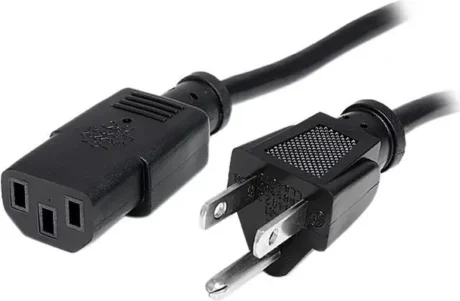
Also known as an AC power cord or “kettle plug” (due to its resemblance to the connector used on electric kettles), this cable provides the necessary electrical power to operate devices. The most common connector for desktop PCs and monitors is the IEC 60320 C13 connector.
How Does it Work?
The power cable supplies alternating current (AC) power to the internal Power Supply Unit (PSU) of the computer, which converts the power into the specific low-voltage direct current (DC) required by the internal components.
Connection
For safety, all power should be disconnected before handling. One end of the cable connects to the wall AC power socket, and the other connects to the back of the PSU or directly to the monitor.
CHAPTER NINE: Thunderbolt 3 / USB-C
Thunderbolt 3 / USB-C
1. Thunderbolt 3
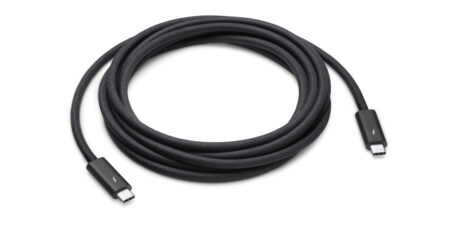
Thunderbolt 3 is a high-performance connectivity protocol developed by Intel, which uses the USB-C connector shape. It is often found on high-end Windows laptops and Apple Macs.
Function: Thunderbolt 3 is a tunneling protocol that allows data, video (DisplayPort), and PCIe (for external GPUs and high-speed storage) to run over a single cable.
Speed: It operates at an impressive 40 Gigabits per second (Gbps), making it ideal for connecting multiple high-resolution monitors, external graphics cards, and fast external storage.
Connection: Typically involves connecting a Thunderbolt 3 dock (which often requires its own power supply) to a single Thunderbolt 3 port on the computer.
2. USB-C
USB-C is strictly the physical connector type—a small, reversible, oval-shaped plug. It is used by many protocols, including USB 3.0, USB 3.1, USB 4, and Thunderbolt.
Function: USB-C supports charging, data transfer, and can carry more power (up to 100W, or 240W with the new Extended Power Range specification) than older USB types.
3. Difference between Thunderbolt 3 and USB-C
The key difference is that all Thunderbolt 3 ports and cables are USB-C, but not all USB-C ports and cables are Thunderbolt 3. Thunderbolt 3 requires specialized circuitry in the computer and cable to achieve its 40 Gbps speed and tunneling capabilities. A standard USB-C cable will operate at the maximum supported USB speed of the device (e.g., 5 Gbps or 10 Gbps).
CHAPTER TEN: DisplayPort
DisplayPort
What is the DisplayPort?
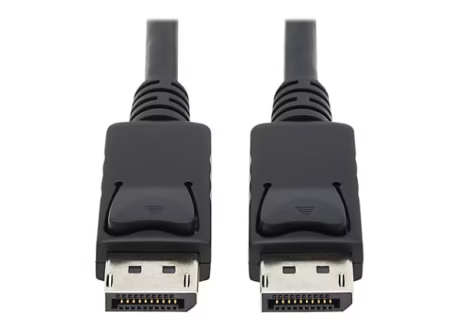
DisplayPort is a digital display interface developed by the Video Electronics Standards Association (VESA) that operates similarly to HDMI but is primarily favored in the PC and professional monitor market. It is capable of transmitting audio, video, and data in one connection.
How Does it Work?
DisplayPort uses packetized data transmission, a method that allows it to achieve very high bandwidth (DisplayPort 2.0 supports up to 80 Gbps), enabling high-resolution (8K) and high-refresh-rate (144Hz+) gaming. It is particularly known for its support of Multi-Stream Transport (MST), which allows multiple independent displays to be connected to a single DisplayPort output.
DisplayPort VS HDMI
| Feature | DisplayPort | HDMI |
| Industry Focus | PC, Professional, Gaming | Consumer Electronics, TV, Blu-ray |
| Multi-Display | Superior (MST Support) | Limited (usually requires external hub) |
| License | Royalty-free (VESA standard) | Requires licensing fees |
| Cable Lock | Often includes a locking mechanism | Friction fit only |
While DisplayPort is technically superior in bandwidth and professional features, HDMI remains the most ubiquitous connector worldwide.
CHAPTER ELEVEN: More About Cables (Conversion Solutions)
In the real world, devices often have incompatible ports, necessitating converters. Converters are generally categorized as Passive (for simple signal rearrangement) or Active (for converting one signal type to another, requiring internal circuitry and sometimes power).
| Conversion Scenario | Purpose and Technical Requirement |
| VGA to HDMI Cable | Active Conversion Required. Converts the analog VGA signal to a digital HDMI signal and merges it with a separate audio input. Used to connect old PCs to new digital monitors. |
| HDMI to DVI Cables | Passive Conversion Possible. Since both use similar digital video formats, a simple adapter is often sufficient for video-only transmission. Audio is lost unless a specialized converter is used. |
| DVI to VGA | Passive Conversion Possible (DVI-A or DVI-I). If the DVI port supports the analog signal (DVI-I), a simple adapter can redirect that signal to a VGA monitor. |
| USB-C to HDMI Cable | Active Conversion Required. Utilizes the DisplayPort Alternate Mode (DisplayPort Alt Mode) functionality within the USB-C port to output an HDMI video signal. |
| COAX to HDMI Cable | Active Conversion Required. Uses an old RF (Radio Frequency) modulator, often powered, to demodulate the coaxial signal into the digital HDMI format for modern televisions. |
Conclusion
Computer cables are far more than just wires; they are complex interfaces designed to specific standards to carry power, data, and multimedia signals with precision. From the legacy analog VGA to the blazing-fast digital Thunderbolt, each cable performs a specific function, and understanding these features is the key to building and maintaining an effective computer system. By using this guide, you can confidently choose the right connector for the right job, ensuring that your digital experience is efficient and future-proof.